
Tag: ubuntu
Netatalk Time Machine backups to Ubuntu Linux 10.04 Lucid AFP Network Share Configuration Guide
by Greg on Nov.29, 2011, under Backup, Linux, Mac, Networking, Ubuntu
Well… not much of a guide really. Just a very quick how-to on what I did to get Time Machine on my Macbook Pro with OSX Lion 10.7 to save the backup data to my Linux server network share using AFP, rather than SMB (Windows Share), a Time Capsule, or and Apple Server. I will attach my working config files for your reference as well. Note that, 1) I am using the source code for Netatalk, compiled and installed, not the Ubuntu or Debian package, and 2) I am assuming you are comfortable with installing software from source. Last note, I owe a HUGE THANK YOU to post I found on the basic’s of this configuration. (located here: http://www.trollop.org/2011/07/23/os-x-10-7-lion-time-machine-netatalk-2-2/) I had a hard time getting anything working otherwise, and that post mostly got things working for me.
I really love this setup, because:
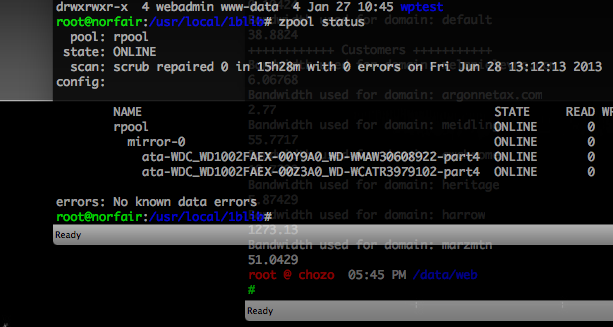
A) I am running a tiny ITX case with a 1.5TB ZFS mirror in it for data integrity. (back when drives were cheap, this makes a powerful and inexpensive NAS) (oh and I am running this using the zfs-native package on Ubuntu Lucid! Love it!)
B) I love having the network-based Time Machine running, because it just runs whenever I am on my home network. I don’t have to think about, “Well, should I plug in my USB drive and backup tonight?” It just runs all the time.
C) I also have Crashplan running on that ZFS pool, to save all my local machines here as well.
None of that has anything to do with getting an AFP share running, so, moving on. The instructions below don’t cover the creation of your sparce file for the AFP share, which Time Machine uses. Once you get to the Sixth step below, you’ll need to create that sparce bundle and copy it to your share. I used the script located on this post to generate my sparce bundle and copy it over to my server share. Anyway, to get your Mac talking to your Linux box, setup Netatalk like below. :)
FIRST:
Go get the latest Netatalk source code from Sourceforge. http://netatalk.sourceforge.com/
Download and un-tar that code into a directory of your choice. But before we configure and compile this… we need some supporting software.
SECOND:
Get the supporting software packages for Avahi and other items. We need Avahi for zeroconf and other libs for authentication purposes.
I ran this apt-get command:
apt-get install avahi-daemon mdns-scan \ avahi-utils libavahi-common-dev \ libavahi-compat-libdnssd1 libavahi-compat-libdnssd-dev \ libssl-dev libacl1-dev libwrap0-dev libgcrypt11-dev libdb4.8 libdb4.8-dev
Install the above items, then we can move on to the compile and install of afpd/Netatalk.
THIRD:
Now, “cd” to the directory where you un-tar’d the netatalk download code. For example, mine was in this folder:
cd /mpool/Shares/Shared/netatalk-2.2.1
Assuming all the above packages installed successfully, let’s run ./compile. Here’s my command line:
./configure --enable-debian --with-acls --enable-ddp --enable-zeroconf
Then, if that ran successfully, you should end up with some summary information as follows: (may not be exact)
Using libraries:
LIBS = -lpthread -L$(top_srcdir)/libatalk
CFLAGS = -I$(top_srcdir)/include -D_U_="__attribute__((unused))" -g -O2 -I$(top_srcdir)/sys
SSL:
LIBS = -L/usr/lib64 -lcrypto
CFLAGS = -I/usr/include/openssl
LIBGCRYPT:
LIBS = -lgcrypt
CFLAGS =
BDB:
LIBS = -L/usr/lib64 -ldb-4.8
CFLAGS =
Configure summary:
Install style:
debian
AFP:
Large file support (>2GB) for AFP3: yes
Extended Attributes: ad | sys
CNID:
backends: dbd last tdb
UAMS:
DHX ( SHADOW)
DHX2 ( SHADOW)
RANDNUM ( SHADOW)
passwd ( SHADOW)
guest
Options:
DDP (AppleTalk) support: yes
CUPS support: no
Apple 2 boot support: no
SLP support: no
Zeroconf support: yes
tcp wrapper support: yes
quota support: yes
admin group support: yes
valid shell check: yes
cracklib support: no
dropbox kludge: no
force volume uid/gid: no
ACL support: yes
LDAP support: no
Notice the section on “UAMS” containing “DHX” and “DHX2″? You must have those listed, or your Mac OSx Lion system wont work on it. It needs the encrypted authentication. If you don’t see those listed, you are missing some libraries on your system.
FOURTH:
Now if all is well… run make.
make
make install
Run the above command, while still in that source directory.
Netatalk will install binaries for you under: /usr/local/sbin and config under: /usr/local/etc/netatalk.
It also installs a basic startup script under your /etc/init.d directory called, easy enough, “netatalk.”
FIFTH:
Setup your config. I’ll attach my configs for your reference, but here’s a couple basics.
1. afpd.conf - comment out anything else, and add this line:
- -udp -noddp -uamlist uams_randnum.so,uams_dhx.so,uams_dhx2.so -nosavepassword
2. AppleVolumes.default – also comment out others, and add these.
These are just an example, based on my config. You’ll need to adjust the names and paths.
(NOTICE the “tm” at the end of the time machine share below, you must have that for TM to work.)
/dapool/bu/tm TimeMachine allow:greg cnidscheme:dbd options:usedots,upriv,tm /mpool/Shares/AppleShare AppleShare allow:greg cnidscheme:dbd options:usedots,upriv
3. netatalk.conf – I didn’t have this file on one system, so I just created it and added the config below:
#### machine's AFPserver/AppleTalk name.
ATALK_NAME=`echo ${HOSTNAME}|cut -d. -f1`
#### server (unix) and legacy client (<= Mac OS 9) charsets
ATALK_UNIX_CHARSET='LOCALE'
ATALK_MAC_CHARSET='MAC_ROMAN'
#### Don't Edit. export the charsets, read form ENV by apps
export ATALK_UNIX_CHARSET
export ATALK_MAC_CHARSET
#########################################################################
# AFP specific configuration
#########################################################################
#### Set which daemons to run.
#### If you use AFP file server, run both cnid_metad and afpd.
CNID_METAD_RUN=yes
AFPD_RUN=yes
#### maximum number of clients that can connect:
AFPD_MAX_CLIENTS=20
#### UAMs (User Authentication Modules)
#### available options: uams_dhx.so, uams_dhx2.so, uams_guest.so,
#### uams_clrtxt.so(legacy), uams_randnum.so(legacy)
AFPD_UAMLIST="-U uams_dhx.so,uams_dhx2.so"
#### Set the id of the guest user when using uams_guest.so
AFPD_GUEST=nobody
#### config for cnid_metad. Default log config:
CNID_CONFIG="-l log_note"
#########################################################################
# AppleTalk specific configuration (legacy)
#########################################################################
#### Set which legacy daemons to run.
#### If you need AppleTalk, run atalkd.
#### papd, timelord and a2boot are dependent upon atalkd.
ATALKD_RUN=no
PAPD_RUN=no
TIMELORD_RUN=no
A2BOOT_RUN=no
#### Control whether the daemons are started in the background. #### If it is dissatisfied that legacy atalkd starts slowly, set "yes". ATALK_BGROUND=no #### Set the AppleTalk Zone name. #### NOTE: if your zone has spaces in it, you're better off specifying #### it in afpd.conf ATALK_ZONE=@AFP
SIXTH:
Start ‘em up!
/etc/init.d/netatalk start
That should start up the services. I did a quick check using “netstat -tapn” and if you see these below, you should be running:
tcp 0 0 0.0.0.0:548 0.0.0.0:* LISTEN 22146/afpd tcp6 0 0 ::1:4700 :::* LISTEN 22144/cnid_metad
Again, may look a bit different on your system, but you should at minimum see the afpd process on port 548 and soemthing listed for “cnid_metad” on its default port of 4700. I don’t know why mine says tcp6, but it works, so I am not complaining.
I should note, I set this up on two systems. One worked right away, the other wouldn’t start cnid_metad. Your startup should respond with:
..Starting Netatalk services (this will take a while): cnid_metad afpd.
See that “cnid_metad” listed in the services starting? My problem system wouldn’t show this, it only showed afpd. As a result, Time Machine and Finder on my Mac would give me an error about CNID DB not working and “using temporary” or something like that. Time Machine failed everytime.
What I did to fix it, was a cheesy hack. I just found the lines below in my /etc/init.d/netatalk script:
# prepare startup of file services if [ "x$CNID_METAD_RUN" = "xyes" -a -x /usr/local/sbin/cnid_metad ] ; then echo -n " cnid_metad" /usr/local/sbin/cnid_metad $CNID_CONFIG fi
I changed the above to look like this:
# prepare startup of file services if [ -x /usr/local/sbin/cnid_metad ] ; then echo -n " cnid_metad" /usr/local/sbin/cnid_metad $CNID_CONFIG fi
I don’t care if CNID_METAD is “yes” or not, I just want it to run! Everytime! So I just check if that binary is executable and launch it. This worked!! And Time Machine connected to my AFP share (which was this: afp://draygon/TimeMachine ) and started backing up!
I won’t go into the Time Machine config on your Mac here. All you really need to do is in the “Select Disk” button, it will list your available disks, just select the one on your server. I did make sure I could connect to it first. In Finder, go to “Go” on the menu and select “Connect to Server”. Type in the server path or browse to it. ( afp://YOUR_SERVER_NAME/YOUR_SHARE_NAME ) If that opens, and you can create files in there in Finder, you should be good to go!
It should be obvious, as well, that on your Linux system you need a user account created with a matching password (which Finder on your Mac may ask for). You should also have file system permissions configured on your Linux system accordingly. If not, you will have trouble connection and/or creating files. Therefore, Time Machine won’t work either. So make sure the “sharing” stuff works.
My Config Files:
Located in /usr/local/etc/netatalk, the links below will open up at pastebin.com.
afpd.conf - http://pastebin.com/3kvHLLph
AppleVolumes.default - http://pastebin.com/Z0L7pzGi
netatalk.conf - http://pastebin.com/agVs4RW0
Extra Note:
I wanted to mention this link: http://lifehacker.com/5691649/an-easier-way-to-set-up-time-machine-to-back-up-to-a-networked-windows-computer
In order to get Time Machine to use that AFP share, you need to create a Sparse bundle file which saves your data. The link above has some great instructions on that. And they link you to this script for your Mac to create the file and copy it, makes it easy!
EDIT 12/02/11:
On OSX Lion, you apparently DO NOT need to manually create that sparse file. I had to remove my backup data and recreate it, and when I did, I did not create the sparse file. I simply opened Time Machine, clicked Select Disk, and there was my network share. I selected that network share and it created a new sparse file and started to backup automatically. Nice!!
Maybe that’s a Lion thing, I don’t know. BUT YOU DO NEED to tweak your Mac to allow backup to an unsupported network share. The articles listed above mention using the “secrets pref pane” in OSX and a checkbox to allow the unsupported backup location. PrefPane can be downloaded from this site:
http://secrets.blacktree.com/
(you can really BREAK your Mac with that program with some of those settings, so use at your own risk! I only used it to set my Time Machine to use Linux.)
Its a quick-n-easy install. Open that program once installed, go to the Time Machine section and check the box to allow unsupported backup locations. There is a manual, command line way to do this as well.
UnixODBC example setup and configuration on Ubuntu Lucid with Mysql and PostgreSQL using the command line only
by Greg on Jun.28, 2011, under Databases, Linux, Ubuntu
Below is a very quick example of what I did to configure a system DSN connection to a Mysql and PostgreSQL database using UnixODBC drivers on Ubuntu Lucid server from command line only.
# Do the obvious, install mysql an postgresql first. :)
# install unixodbc
apt-get install unixodbc unixodbc-dev libmyodbc odbc-postgresql
# cd to /etc/ODBCDataSources
# setup mysql driver, make myodbc_template file
[MySQL]
Description = MySQL driver
Driver = /usr/lib/odbc/libmyodbc.so
Setup = /usr/lib/odbc/libodbcmyS.so
#inst template driver
odbcinst -i -d -f myodbc_template
# setup pg driver, make pgodbc_template file
[PostgreSQL]
Description = PostgreSQL driver for Linux & Win32
Driver = /usr/lib/odbc/psqlodbca.so
Setup = /usr/lib/odbc/libodbcpsqlS.so
#inst template driver
odbcinst -i -d -f pgodbc_template
# query available/installed drivers
odbcinst -q -d
#should list Mysql and PostgreSQL
# make sample dsn template called gregtest_dsn
[gregtest]
Driver = /usr/lib/odbc/libmyodbc.so
SERVER = localhost
PORT = 3306
DATABASE = gregtest
OPTION = 3
USER = majorpayne
PASSWORD = ******** < replace with password!
# install dsn
odbcinst -i -s -l -f gregtest_dsn
# query system dsn's
odbcinst -q -s
#connect
isql -v gregtest
# should connect and be able to run sql statements! :)
Make more DSN's for other databases by adding more template files and repeating the steps above.
Edit 7/7/11:
I think pgsql odbc should not be /usr/lib/odbc/libodbcpsql.so , but rather /usr/lib/odbc/psqlodbca.so.
I have not tested, but I later realized libodbcpsql.so does not exist. Just an FYI.
Resource Usage on Dell Inspiron Mini 1012 with Window 7 Ubuntu 10.04 Lucid and Jolicloud
by Greg on Mar.14, 2011, under Linux, Ubuntu, Windows 7
I was asked about the resources used on the Dell Inspiron Mini 1012 using either Windows 7, Ubuntu 10.04 Lucid, or JoliCloud operating systems. So… here’s what I found…
I didn’t do anything fancy, just boot each up and look at their system/task managers. The Linux systems have Chromium/Google Chrome running, and Jolicloud has Apache and Mysql services running, but they both ran at about 200Mb – 250Mb and minimal CPU usage. On the Linux systems, I immediately launched the system monitors upon boot and took a screenshot. On Windows, however, I didn’t even have a screenshot app, so I had to find one first. This brought the usage down a little, down to around 650Mb (it boots with about 750Mb), but CPU was still up there and bouncing around a lot, just lower than during bootup. Keep in mind also, on Windows, the Dell came with McAfee antivirus, which is running and using resources. But NO WEB BROWSER is running on Windows in the screen shot.
What I found really annoying, was that once Internet Explorer was launched, so I could upload a screenshot, the memory went up and over 800Mb! I only have 1Gb in this thing, so there’s really no room for apps to run. I am sure an extra 1Gb of memory would help, but it wouldn’t make it any faster. The thing just runs slow regardless under Windows. On the Linux side, they run slow too, just *not as slow* feeling as Windows does. At least there’s room in 1Gb to run some apps.
It was odd though, because Windows sitting idle would run a low cpu percentage, like under 10%, and commonly with 2-5%. Once you do anything, the cpu spikes up, and with IE running, it runs 100% for a while. On Ubuntu, you can see it running consistently around 25%, which spikes just like Windows, only not 100%. Jolicloud runs a little better, with about 10 – 15% resources at idle, with the occasional spikes too. They all spike up when you do anything, but Windows spikes way up, and a lot of the time its at 100%. Could be, that’s why it seems slower, and that may be caused by extra swapping to disk because Windows requires much more memory. (I don’t really know, just a theory) Just my opinion, concerning the general operational responsiveness, Ubuntu 10.04 seems to run a little better than either, but Jolicloud is very close and not really noticeable. I think its just the UI they’ve got that’s just a tiny bit slower than the Ubuntu GUI. But its not a big deal.
Anyway, here’s the screenshot of Windows after about 5 minutes from boot.
And below is the Jolicloud screenshot.
And last, below is Ubuntu 10.04 Lucid Netbook Remix version.
Nmap network discovery port scan
by Greg on Mar.10, 2011, under Internet, Linux, Security
If you are like me, you don’t have time to run nmap scans and do other network maintenance. Running nmap is one of those really fun and useful tools that are easy to use, but since I rarely use it, I never remember the options. Today was one of those situations where I needed to hunt down a host on my client’s network remotely running certain software. It wasn’t responding to any remote services (like RDP) or pings, so I didn’t even know if it was on the correct IP address. I thought it would easy enough to do a quick network scan with nmap to discover the hosts running.
At a simple level, and on a small, class C network, I just ran this:
sudo nmap -PR 192.168.0.*
This allowed me to quickly see all the hosts that were up on the local subnet, and here’s an example showing the end of the output on the last host found:
Interesting ports on 192.168.0.210: Not shown: 992 closed ports PORT STATE SERVICE 21/tcp open ftp 80/tcp open http 139/tcp open netbios-ssn 427/tcp open svrloc 443/tcp open https 515/tcp open printer 631/tcp open ipp 9100/tcp open jetdirect MAC Address: 00:1B:xx:xx:xx:xx (NEC AccessTechnica) Nmap done: 256 IP addresses (20 hosts up) scanned in 42.07 seconds
That was super helpful. The host I needed showed right up, at the correct IP address, with most of the ports I expected. (not the one shown above) Now I just need to remote into the system (if I can) and adjust things. Nmap made it real easy on our Linux server.
There are some more useful commands, and as I need them, I’ll blog them. For today, this was all I needed.
broadcom STA wireless driver “systemerror: installarchives() failed” on Ubuntu Maverick Dell Mini
by Greg on Feb.24, 2011, under Geek, Linux, Ubuntu
broadcom STA wireless driver “systemerror: installarchives() failed” on Ubuntu Maverick Dell Mini
While attempting to Activate the proprietary Broadcom STA Wireless driver in Ubuntu 10.10 Maverick, I waited and then recieved the error, “systemerror: installarchives() failed”. I am using a Dell Inspiron Mini 1012. I am also booted into the Live USB install flash disk, not from my hard drive.
Some installs and uninstalls failed using the “Software Center.” So on to apt.
First thing I thought was, “we probably need our sources updated.” So, from terminal, run:
sudo apt-get update
(obviously, you will need to be connected to the “wired” ethernet and have a live internet connection, so make sure that’s working first.)
I had to do a little Googling,and I also checked in Software Center for anything with Broadcom in the search, and I found the bcmwl-kernel-source package. Let’s reinstall this and see if it works.
Next I ran:
sudo apt-get remove bcmwl-kernel-source
This process started to remove the package, but I noticed that it also was trying to remove DKMS Modules. This failed. Next, let’s try removing DKMS.
sudo apt-get remove dkms
That uninstalled ok, but then failed, again, on the bcmwl-kernel-source package. What’s the deal with this package?! Maybe just reinstalling inplace?
sudo apt-get --reinstall install bcmwl-kernel-source
Same problem!
Let’s try:
sudo apt-get -f --reinstall install bcmwl-kernel-source
sudo apt-get --purge remove bcmwl-kernel-source
Still not working! Fails on update-initramfs!
Seems that nothing I do will allow me to update/reinstall/fix this issue. The problem has something to do with the update-initramfs process and its not working on the USB stick. There may be some further log info, but what I found online was a bug in the “casper” system. I guess the USB sticks are not writable and update-initramfs will fail.
https://bugs.launchpad.net/ubuntu/maverick/+source/casper/+bug/591207
So I tried this: (be careful , you may end up with a non-bootable USB disk)
sudo apt-get install casper
sudo /usr/share/casper/casper-update-initramfs -u
sudo reboot
Woah!! Nice!! It worked on reboot!! Boom – Headshot! I didn’t even need to reinstall the Broadcom drivers! After booting into the Netbook Remix on the Live USB disk, once I clicked on the network manager icon, it showed me all the available wireless networks!
That was awesome! It felt like when I play Call of Duty Modern Warfare 2 when I get a headshot, which always comes as a surprise to me. Boom! Headshot! And then I think, “Ok, that was cool! Didn’t expect that to work!” ROFL!
Well, now that I can see the Wifi is working, I’ll install on my hard disk.
Good luck!
Fix ext4-fs cannot change data mode on remount with tune2fs
by Greg on Feb.03, 2011, under Linux
I thought I’d be smart and enable data=journal on my root file system. I know its slower, but I prefer data integrity over speed on this system. Even if its not my main data volume, I like the idea of the whole OS running with the best integrity.
So, here’s what I did… I edited my /etc/fstab file, and added “data=journal” in the mount options. Here’s my old fstab:
/dev/mapper/vg1-root / ext4 defaults,errors=remount-ro 0 1
I changed it to:
/dev/mapper/vg1-root / ext4 rw,data=journal,journal_checksum 0 1
Well… upon reboot, I got an error and it wouldn’t load the system:
EXT4-fs: cannot change data mode on remount
Turns out, during boot it’s first mounted as read only, if I understand things correctly, then remounted per your fstab options. When I created the file system I didn’t use the option to journal_data, which is not “ordered” mode, per ext4 default. And the root file system is remounted during boot. (correct Linux Pros out there? I have that right, right?) So to fix this, I booted into my trusted SystemRescueCD (on USB) and ran this:
tune2fs -o journal_data /dev/vg1/root
Yahoo! It booted right up with my new fstab options. Note that YOU MUST have created that file system with journaling enabled in the first place, like you would with “mkfs.ext4 -j /dev/sda1″. (with the -j option)
PS. You can list the options on the file system with “tune2sf -l /dev/sda1″.
BTW, I am using Ubuntu 10.04 server, in case you wondered. :)
Ubuntu rndc.key dynamic DNS updates failing
by Greg on May.12, 2009, under Internet, Linux, Networking
Just wanted to add a quick note about this as I couldn’t find a reason why dynamic DNS on my Ubuntu 9.04 system were failing. I had all the right perms, ownership, etc. I even opened up the files to full world writable and still, I got errors that the journal files could not be written to.
Log snippets:
error: journal open failed: unexpected error
jnl: create: permission denied
Learning as I go… there’s a thing in Ubuntu called Apparmor. Never even heard of this. This is what was keeping the files from being written to by the bind daemon. I guess Apparmor has been in this for a while now, but for several yeas now, I have not run into a situation where I had to mess with it.
Here’s what you change. And keep in mind, this is NOT the correct way to handle this on a production or public DNS server. You’ll need to read up more on the correct config for this one. But on my tiny LAN or at home, here’s what I did. In the /etc/apparmor.d directory, edit the usr.sbin.named file. Find the line:
/etc/bind/** r,
Change it to:
/etc/bind/** rw,
Then restart the apparmord daemon. If your DDNS config in Bind and DHCP are correct, you should start seeing successful updates now.
Here’s a coulple links that were helpful on the DDNS setup:
http://brunogirin.blogspot.com/2007/11/dhcp-and-dynamic-dns-on-ubuntu-server.html
http://ubuntuforums.org/showthread.php?t=274665
http://www.ops.ietf.org/dns/dynupd/secure-ddns-howto.html
Also, I wanted to make a note to myself. Creating a new key for DDNS:
dnssec-keygen -a HMAC-MD5 -b 128 -n HOST dhcp-update-key
That creates keyfiles in which you’ll get your key string, this is added in your dhcpd.conf and named.conf.* files as “secret”. RTFM dnssec-keygen. and read up on the links above. :)